App Preview
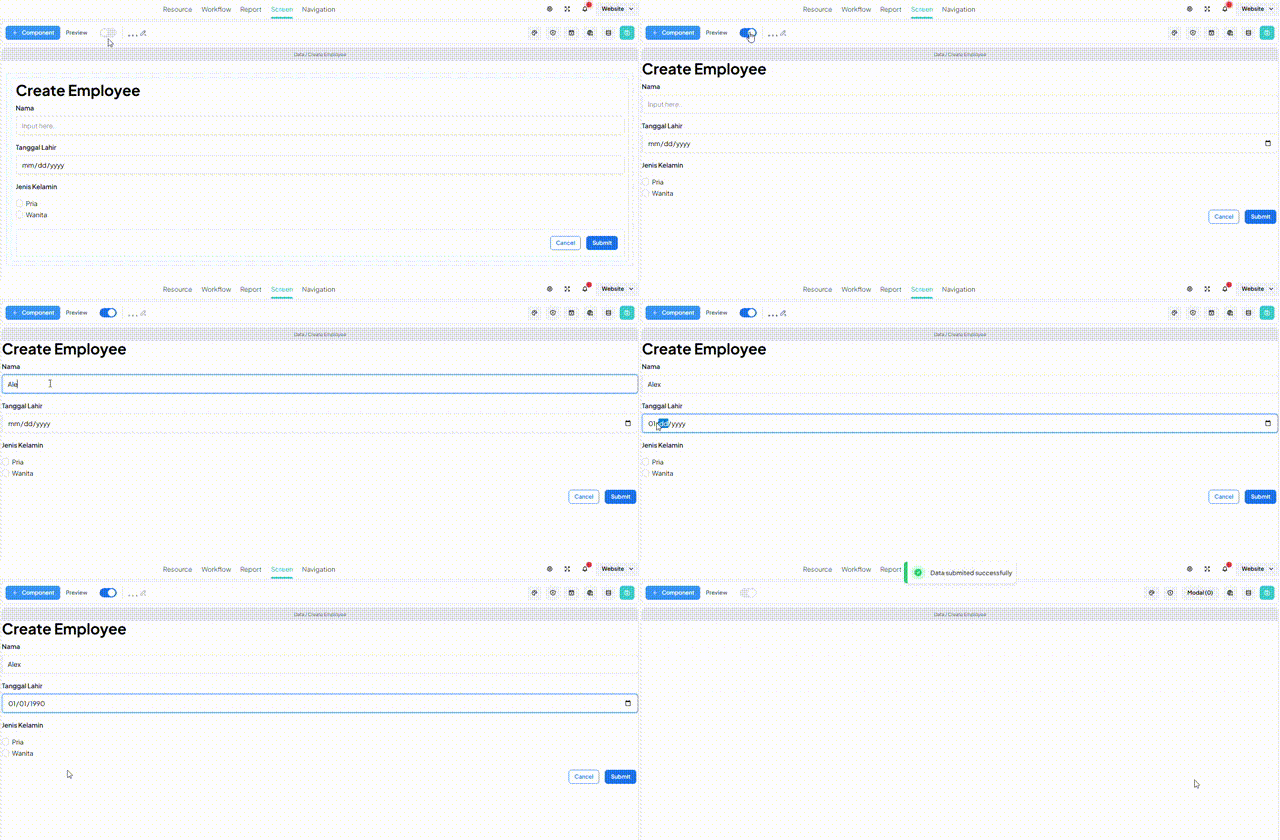
The App Preview feature allows users to view their UI designs in a mode that closely mirrors the production environment. This is especially beneficial for visualizing the user interface's appearance to end users prior to deployment.
Overview
When utilizing the App Preview feature:
Preview Mode
In the preview mode:
- The UI elements are displayed without design aids such as component borders or visual guides that are used during editing.
- The purpose is to provide a clean preview of the UI as it would appear in production.
- Users cannot modify the settings or configurations of UI components in this mode, ensuring that the preview reflects the finalized design accurately.
Key Benefits
The benefits of the App Preview feature include:
- Realistic Representation: Users can assess how their UI will look and function in a production-like environment.
- Enhanced User Experience: By previewing the UI without editing capabilities, users can focus solely on the visual presentation and usability.
- Quality Assurance: Previewing the UI helps in identifying potential issues or discrepancies before deployment.
Using App Preview
To use the App Preview feature:
-
Access Preview Mode:
- Navigate to the designated preview section or toggle within the application interface.
-
View UI Preview:
- Observe the UI presentation without editing capabilities.
-
Interact with Preview (if applicable):
- Depending on the implementation, users may interact with elements like buttons or links to simulate user interactions for testing purposes.
Limitations
It's important to note the following limitations of the App Preview feature:
- Read-Only Mode: Users cannot make changes to the UI components while in preview mode.
- Static Content: Dynamic data or functionality tied to backend systems may not be fully functional in the preview environment.